Audio to SRT Converter
Turn an audio or video file into an SRT subtitle file with timing for every line, optionally labelled with who is speaking.
Free without sign-up: 1 file per day, up to 10 minutes. Audio is deleted automatically after 7 days.
- Audio and video files, up to 10 hours on Pro
- 20 languages, or automatic detection
- Export TXT, Word, SRT, VTT and JSON
- Audio deleted after 7 days
How to convert audio to SRT

- Upload the audio or video. The file is read in your browser; only the sound is uploaded.
- Transcribe. Each passage gets a start and end time.
- Download SRT. Or VTT for web players, or both.
What the SRT file contains
An SRT file is plain text: a number, a start and end time, and the line to show. This part comes from the reviewed interview sample on the homepage, exported with speaker labels:
6
00:00:12,700 --> 00:00:13,300
Speaker 2: Philip Baker.

7
00:00:13,400 --> 00:00:14,650
Speaker 1: Philip Baker. Of course.
How cues are split
- At most 84 characters per cue. Longer passages are divided.
- Similar lengths. A long sentence is split evenly instead of filling the first cue and leaving a word or two for the next.
- Natural breaks first. Commas and full stops are preferred split points when the lengths allow.
- Timing from the audio. When word timings are available, each cue starts and ends with its words. After you correct a word in the editor, the words you kept keep their timing.
Speaker labels in subtitles
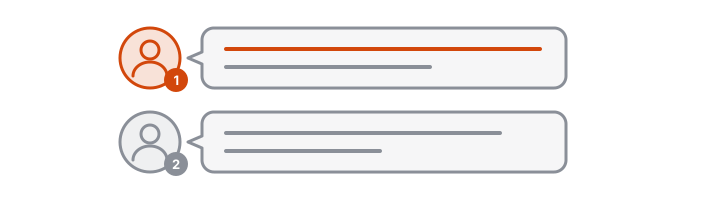
With Pro speaker identification, a label appears on the first cue after each change of speaker, not on every line. That keeps interview and podcast subtitles readable while making it clear who answers. For a single speaker, switch labels off in the Download menu.
What people make with audio-to-SRT
- Podcast clips and audiograms for social video, where many viewers watch without sound.
- Lecture and webinar recordings with captions for accessibility.
- Interview videos with speaker labels.
- Human translation, where a translator works in the SRT and keeps your timing.
Check before you publish
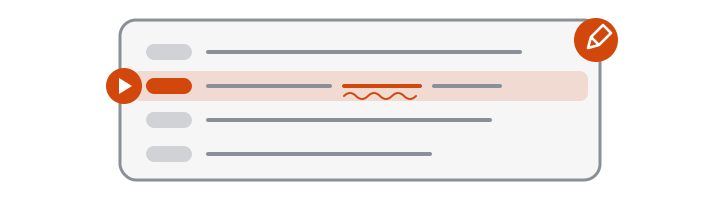
Read the subtitles once and correct names, brand terms and numbers in the editor. VoceText does not burn subtitles into video or translate them; add the SRT in your video editor or on the platform where you publish.
Free and Pro limits at a glance
| Without an account | Free account | Pro | |
|---|---|---|---|
| Price | Free | Free | $10/month or $96/year |
| Files per day | 1 | 3 | No daily limit |
| Longest file | 10 minutes | 30 minutes | 10 hours |
| Monthly allowance | Daily limit only | 10 hours | 100 hours |
| Speaker identification | Not included | Not included | Up to 10 hours per month |
| Edit and save transcripts | Not included | Included | Included |
| Download formats | TXT, DOCX, SRT, VTT, JSON | TXT, DOCX, SRT, VTT, JSON | TXT, DOCX, SRT, VTT, JSON |
| Transcripts kept for | 24 hours | 30 days | Until you delete them |
Frequently asked questions
How do I convert audio to SRT?
Upload the audio file above and click Transcribe. When the transcript is ready, open the Download menu and choose SRT.
Which audio formats can I convert to SRT?
MP3, M4A, WAV, OGG, Opus, FLAC and AAC, and video files such as MP4, MOV, WebM and MKV.
How long is each subtitle line?
Each cue has at most 84 characters. Longer passages are split into cues of similar length, preferring the end of a clause, so no line is left with a single word.
Can the SRT show who is speaking?
Yes, with Pro speaker identification. Each change of speaker starts with “Speaker 1:”, “Speaker 2:” and so on. Switch the option off in the Download menu for plain subtitles.
Can I fix the text before exporting?
Yes, with a free account or Pro. Correct the transcript in the editor while listening; the words you keep keep their timing.
Do I need VTT instead?
Use VTT for HTML5 web players. SRT is accepted by YouTube and most editors. Both are in the Download menu.
Is it free?
Yes. Without an account you can convert one file of up to 10 minutes per day. A free account allows 3 files per day of up to 30 minutes each.