MP4 to Text Converter
Turn an MP4 video into a timestamped transcript or subtitles. Your browser extracts the sound, so the video file never leaves your device.
Free without sign-up: 1 file per day, up to 10 minutes. Audio is deleted automatically after 7 days.
- Audio and video files, up to 10 hours on Pro
- 20 languages, or automatic detection
- Export TXT, Word, SRT, VTT and JSON
- Audio deleted after 7 days
How to convert MP4 to text
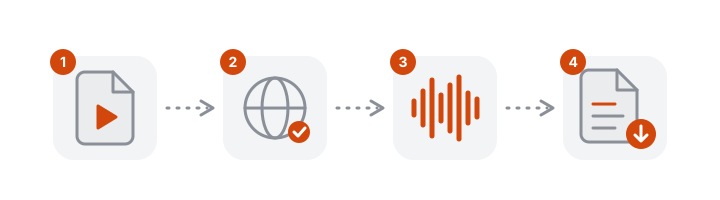
- Choose the MP4. Drop it into the box above or pick it from your phone or computer.
- Check the language. Leave automatic detection on, or select the language spoken in the video.
- Wait for the audio to be prepared. This happens in your browser; long videos take a moment.
- Download the result. TXT for notes, Word for documents, SRT or VTT for subtitles.
Only the audio leaves your device
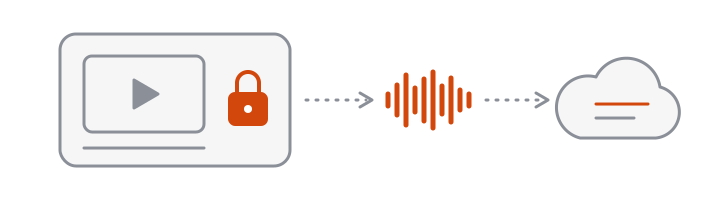
An MP4 holds a picture track and a sound track. VoceText only needs the sound, so your browser separates it before upload:
- Large files upload quickly. A two-hour MP4 becomes a small audio file.
- The picture stays private. Faces, screens and documents in the video are never uploaded.
- File size is not a limit. Only the length of the video counts.
Where MP4 files usually come from
| Source | What to upload |
|---|---|
| Phone camera | The video file from your gallery or Files |
| Zoom local recording | The MP4, or the separate M4A audio file Zoom saves next to it |
| Microsoft Teams or Google Meet | The recording downloaded from the meeting app or your drive |
| Screen recorders and OBS | The exported MP4 |
| Video editors | An MP4 export of the finished edit |
If your file is an M4A or another audio format, see M4A to text or audio to text.
What you get from an MP4
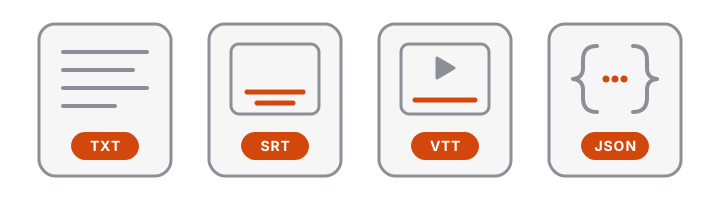
| Download | Use it for |
|---|---|
| TXT | Notes, quotes, a blog draft |
| Word (DOCX) | A transcript to edit, share or submit as a document |
| SRT | Subtitles for YouTube and video editors |
| VTT | Captions for web video players |
| JSON | Timestamped segments for developers |
Turn the MP4 into subtitles
Once the transcript is ready, the same result downloads as SRT or VTT with timing for every line. Before you publish, read it once and correct names and numbers in the editor; the timing comes from the audio and stays in place. See the subtitle generator for where to add the file and audio to SRT for how cues are split.
Your files and privacy
Audio is deleted automatically after 7 days. Transcripts made without an account are deleted after 24 hours, free-account transcripts after 30 days and Pro transcripts when you delete them. Recordings are not used to train AI models.
Free and Pro limits at a glance
| Without an account | Free account | Pro | |
|---|---|---|---|
| Price | Free | Free | $10/month or $96/year |
| Files per day | 1 | 3 | No daily limit |
| Longest file | 10 minutes | 30 minutes | 10 hours |
| Monthly allowance | Daily limit only | 10 hours | 100 hours |
| Speaker identification | Not included | Not included | Up to 10 hours per month |
| Edit and save transcripts | Not included | Included | Included |
| Download formats | TXT, DOCX, SRT, VTT, JSON | TXT, DOCX, SRT, VTT, JSON | TXT, DOCX, SRT, VTT, JSON |
| Transcripts kept for | 24 hours | 30 days | Until you delete them |
Frequently asked questions
How do I convert an MP4 to text?
Drop the MP4 into the converter above, check the language and click Transcribe. Your browser separates the audio track, uploads only the sound, and the transcript appears with a timestamp on every passage.
Is there an MP4 file size limit?
The limit is the length of the video, not the size of the file: 10 minutes without an account, 30 minutes with a free account and 10 hours on Pro. Because only the audio is uploaded, a large MP4 is not a problem.
Is my video uploaded?
No. The picture stays on your device. Your browser extracts and compresses the audio track, and only that is sent for transcription.
Can I get subtitles from an MP4?
Yes. Download SRT or VTT after the transcript is ready. Both carry the timing of every line and work with YouTube and most video editors.
Can I download the transcript as a Word document?
Yes. Choose Word (DOCX) in the Download menu to get a document with a timestamp on each paragraph, and speaker numbers if you used Pro speaker identification.
Does it work with MP4s from Zoom, Teams or Google Meet?
Yes. Download the recording from the meeting app and upload it here. On Pro you can turn on speaker identification to label each participant.
What if my MP4 will not open?
Try Chrome or Edge, which read the widest range of video codecs. If the file still fails, re-export it from the app that made it.
Can it read text shown in the video?
No. VoceText transcribes speech. Slides, captions and other text in the picture are not read.