Video to Text Converter
Transcribe MP4, MOV and WebM videos to text. The audio is extracted in your browser, so even large videos upload fast.
Free without sign-up: 1 file per day, up to 10 minutes. Audio is deleted automatically after 7 days.
- Audio and video files, up to 10 hours on Pro
- 20 languages, or automatic detection
- Export TXT, Word, SRT, VTT and JSON
- Audio deleted after 7 days
How to convert video to text
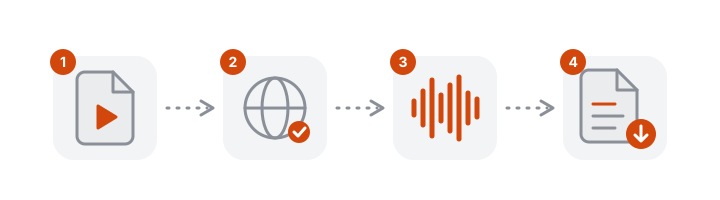
- Choose the video. MP4, MOV, WebM and MKV files work, straight from your camera, phone or screen recorder.
- Wait while the audio is prepared. This happens on your device and takes a moment for long videos.
- Get the transcript. Read it with timestamps, then copy it or download text or subtitles.
Only the sound is uploaded
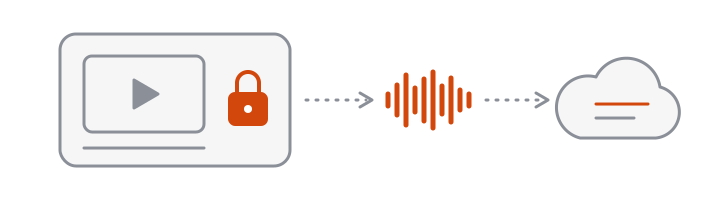
VoceText does not need the whole video file. It separates the audio track in your browser first, so:
- Large videos upload quickly. A two-hour video becomes a small audio file.
- The picture stays private. Faces, screens and documents shown in the video never leave your device.
- File size is not the limit. Only the length of the video counts.
Why convert video to text?
- Subtitles and captions make your videos accessible and watchable without sound.
- Searchable text helps you find the exact moment something was said.
- Repurposed content. Turn a talk, tutorial or webinar into a blog post, show notes or social posts.
- Meeting records. Keep a written copy of a recorded call.
Turn one video into several pieces of content
A transcript is the fastest way to reuse a recording you have already made:
- Transcribe the video and download TXT.
- Use the headings of your talk to split the text into sections for a blog post or documentation page.
- Pick short quotes for social posts, checking each against its timestamp.
- Download SRT and add subtitles to the original video and to any clips you cut from it.
What to expect from different videos
| Video | What to expect |
|---|---|
| Tutorial or screen recording with narration | Very few corrections |
| Webinar or recorded presentation | Good; check product names and figures |
| Interview or panel | Good; overlapping speech needs review, speaker labels on Pro |
| Vlog with background music | Usable; music under speech lowers accuracy |
| Event filmed from a distance | Echo and crowd noise cause more errors |
Supported video formats
| Format | Typical source |
|---|---|
| MP4 | Phones, cameras, Zoom, Meet and Teams recordings |
| MOV | iPhone and Mac screen recordings |
| WebM | Browser-based recorders |
| MKV | Screen capture and streaming software |
If a file cannot be read in your browser, try Chrome or Edge, or convert it to MP4 first.
From transcript to subtitles
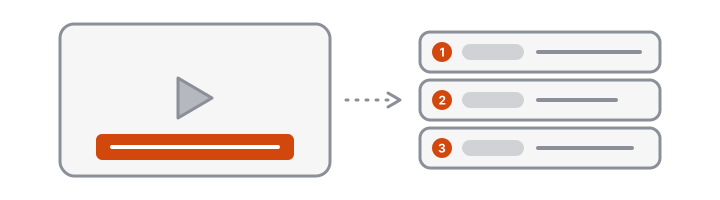
Once the video is transcribed, the same result downloads as SRT or VTT with the timing for every line. See the subtitle generator for which format to choose and where to add it.
Free and Pro limits at a glance
| Without an account | Free account | Pro | |
|---|---|---|---|
| Price | Free | Free | $10/month or $96/year |
| Files per day | 1 | 3 | No daily limit |
| Longest file | 10 minutes | 30 minutes | 10 hours |
| Monthly allowance | Daily limit only | 10 hours | 100 hours |
| Speaker identification | Not included | Not included | Up to 10 hours per month |
| Edit and save transcripts | Not included | Included | Included |
| Download formats | TXT, DOCX, SRT, VTT, JSON | TXT, DOCX, SRT, VTT, JSON | TXT, DOCX, SRT, VTT, JSON |
| Transcripts kept for | 24 hours | 30 days | Until you delete them |
Frequently asked questions
How do I convert a video to text?
Drop the video file into the tool above and click Transcribe. Your browser extracts the audio track, uploads only the audio, and the transcript appears with timestamps.
Is there a file size limit for videos?
Because only the audio is uploaded, the video file size barely matters. What counts is the duration: 10 minutes without an account, 30 minutes on the free plan and up to 10 hours on Pro.
Can I get subtitles from my video?
Yes. Download the transcript as SRT or VTT and upload it to YouTube, Vimeo or your video editor.
Can I transcribe a YouTube link?
VoceText transcribes files you upload. To transcribe your own YouTube video, upload the original video file.
Is my video uploaded to your servers?
No. The picture never leaves your device. Your browser separates the audio track and uploads only the compressed sound.
Can I transcribe a Zoom, Meet or Teams recording?
Yes. Download the recording from the meeting app as MP4 or M4A and upload it here. On Pro you can also label each speaker.
Does it read text shown on screen?
No. VoceText transcribes what is spoken. Slides, captions and other text in the picture are not read.
What if the video has no sound?
There is nothing to transcribe. VoceText tells you the file has no audio track.
Which languages are supported?
20 languages, including English, Spanish, Portuguese, German, Italian, French, Japanese, Korean and Chinese. The text is in the language spoken in the video.
Can I transcribe a screen recording?
Yes, as long as it was recorded with sound. Narrated tutorials and recorded presentations work well.