How to Transcribe Your First Recording
Turn a meeting, interview, podcast, or lecture into a timestamped transcript with VoceText, then review it and export text or subtitles.
Start with a recording you already have, such as an MP3 interview or an MP4 lecture. This guide walks through one file from upload to a finished transcript, and covers the choices that affect the result.
Before you upload
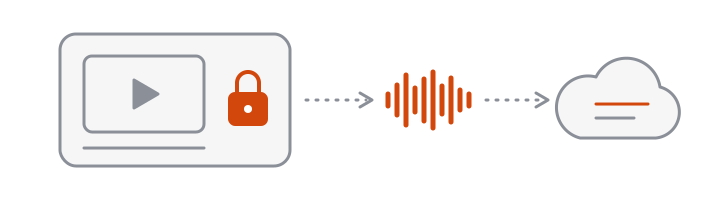
You do not need to convert anything. VoceText reads MP3, M4A, WAV, OGG, Opus, FLAC, AAC, MP4, MOV, WebM and MKV. Your browser extracts the audio and compresses it, so only sound is uploaded, even from a large video.
Check the length of the recording against what you can use:
| Without an account | Free account | Pro | |
|---|---|---|---|
| Files per day | 1 | 3 | No daily limit |
| Longest file | 10 minutes | 30 minutes | 10 hours |
A longer recording than your limit is declined before anything is used up.
Choose a file and language
Open the transcription tool and select your file. If you know the spoken language, select it before you start. Automatic detection helps when the language is unknown, but selecting it is more reliable for short or noisy recordings.
On Pro you can also turn on Identify speakers, which labels each paragraph with a speaker number. Use it for interviews and meetings; leave it off for a single voice.
While it runs
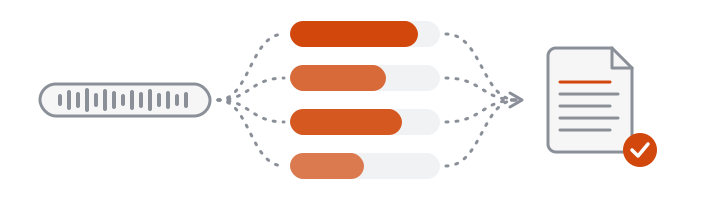
Three things happen after you click Transcribe:
- Preparing audio. Your browser decodes the file. This is the slowest step for long videos and happens on your device.
- Uploading. The compressed audio is sent in segments.
- Transcribing. Segments are processed in parallel and merged into one transcript.
Keep the page open until the transcript appears.
Review the transcript
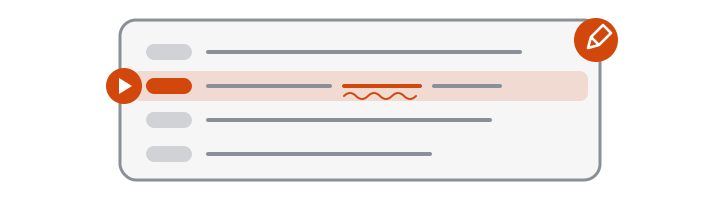
Read the text alongside its timestamps. Click a timestamp to hear exactly that moment. With an account you can correct the text in place and save.
Errors cluster in predictable places, so check these first:
- Names of people, places and products
- Numbers, dates and amounts
- Specialist terms and abbreviations
- Moments when two people speak at once
To see what a finished result looks like before you upload anything, play the sample on the homepage and download it as subtitles.
Download the right format
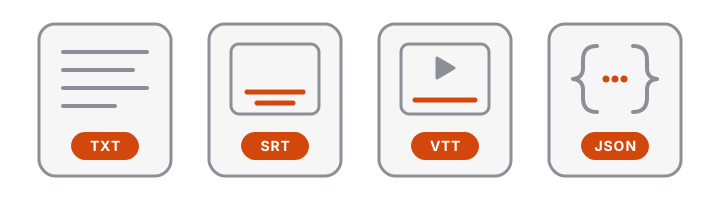
| Format | Use it for |
|---|---|
| TXT | Notes, articles and quotes |
| SRT | Subtitles for YouTube and video editors |
| VTT | Captions for web video players |
| JSON | Timestamped segments for developers |
How long your files are kept
Audio is deleted automatically after 7 days. Transcripts made without an account are deleted after 24 hours, so sign up before you leave if you want to keep one: the transcript you just made moves into your new account. Free accounts keep transcripts for 30 days and Pro until you delete them.
If something goes wrong
- The file cannot be read. Try Chrome or Edge, or convert the file to MP3 or MP4.
- The file has no audio track. Some screen recordings are saved without sound; check that it plays with audio on your device.
- The language is wrong. Start again with the language selected instead of automatic detection.
- You reached a limit. Daily limits reset at midnight UTC. See pricing for what each plan includes.