
Audio to Word (DOCX) Converter
Turn MP3, M4A, WAV or video recordings into a formatted, timestamped Microsoft Word (.docx) document. Free, no sign-up and no watermark.
Free without sign-up: 1 file per day, up to 10 minutes. Audio is deleted automatically after 7 days.
- Audio and video files, up to 10 hours on Pro
- 20 languages, or automatic detection
- Export TXT, Word, SRT, VTT and JSON
- Audio deleted after 7 days
Short answer: drop any audio or video recording into the tool above, click Transcribe, and pick Word (DOCX) from the Download menu. No sign-up, no credit card, and no watermark: guests can convert 1 file per day up to 10 minutes straight to a formatted .docx document, and a free account covers 3 files per day up to 30 minutes each (10 hours/month) with in-browser editing before download.
| At a glance | VoceText Audio to Word |
|---|---|
| Free without sign-up | 1 file/day, up to 10 minutes · full .docx export, zero watermark |
| Free account | 3 files/day, up to 30 minutes each, 10 hours/month · edit before export |
| Pro plan | $10/month ($96/year) · up to 10 hours/file, 100 hours/month, speaker labels (up to 10 hrs/mo) |
| Formatting in DOCX | Timestamped, punctuated passages (+ speaker-merged paragraphs & bold labels on Pro) |
| Compatible apps | Microsoft Word, Google Docs, Apple Pages, LibreOffice, NVivo, Atlas.ti, MAXQDA |
| Languages | 20 languages (or auto-detect); audio deleted automatically after 7 days |
How to convert audio to Word in four steps
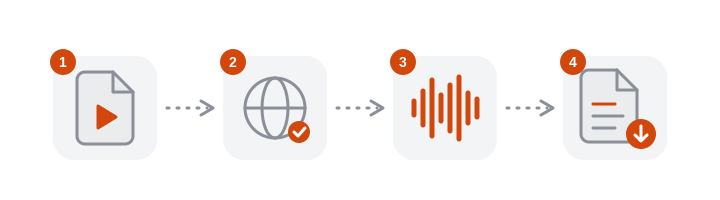
- Choose your audio or video file. Drop an MP3, M4A, WAV, Opus or MP4 recording above.
- Pick the language. Select one of 20 languages or leave automatic detection enabled.
- Review with timestamps (optional, Free account or Pro). Click any timestamp to hear that exact moment and fix names, figures or technical terms in place.
- Download Word (DOCX). Open the Download menu and select Word (DOCX) for a clean, ready-to-edit document—or also grab TXT, SRT, VTT or JSON from the same transcription.
What the exported Word (DOCX) looks like
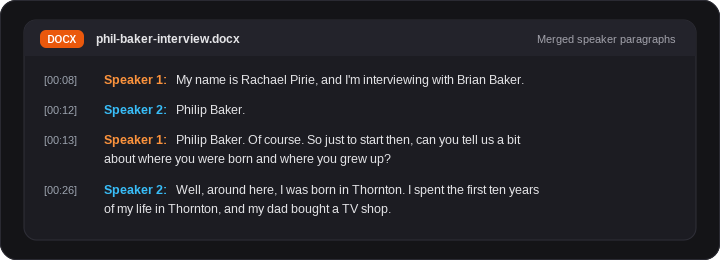
Every exported Word document gives you punctuated text with a start timestamp on each passage, ready to edit or quote directly in Microsoft Word, Google Docs or Apple Pages. When you enable Pro speaker identification, VoceText also merges consecutive segments from the same speaker into continuous paragraphs with bold Speaker 1 / Speaker 2 labels—ideal for multi-speaker interviews and qualitative coding.
Want to inspect a real file before uploading your own? Download the real .docx output directly from the interactive interview sample on the homepage or the interview transcription page.
Why free Word (DOCX) export matters compared with other tools
Several popular free transcription tools lock Microsoft Word export behind a paid tier or only output raw .txt and .srt:
| Tool | Free Word (DOCX) without sign-up? | Free account Word (DOCX)? | Clean, no-watermark output? |
|---|---|---|---|
| VoceText | Yes (1 file/day, up to 10 min) | Yes (3 files/day, 30 min each, 10 hrs/mo) | Yes — no watermark or banner |
| Otter.ai Basic | No (account required) | No — TXT only on Basic (DOCX requires Pro) | Basic TXT adds an Otter footer line (logged in our 23 Nov 2026 live test) |
| Riverside Transcriber | No — exports TXT and SRT only | No | Yes (TXT/SRT) |
| TurboScribe Free | No (account required) | Yes (3 files/day, 30 min each) | DOCX clean; TXT adds banner line |
| Local browser Whisper tools | Varies (many export TXT/SRT/VTT only) | Usually no account | Yes, but requires a ~100–800 MB model download and can be slow on phones / non-GPU laptops |
See our full 2026 free audio transcription tools comparison for limits across every tier.
Common workflows for Word transcripts
- Academic and qualitative research: Export
.docxstraight into NVivo, Atlas.ti or MAXQDA, then run Find & Replace in Word to swapSpeaker 1/Speaker 2for anonymised codes (Interviewer,P1,P2). - Journalism and interviews: Keep timestamps beside every paragraph so you can verify quotes against the recording before publishing. See our full interview transcription guide.
- Meeting minutes and reports: Upload a saved Zoom (
audio_only.m4aor.mp4), Teams or Google Meet recording and share a clean Word doc with your team. - Podcast show notes and scripts: Turn an MP3 episode into an editable Word draft while grabbing
.srtcaptions for clips from the same upload.
Files and privacy

Your browser extracts and compresses only the audio track before upload, so video frames stay on your device. Uploaded audio is deleted automatically after 7 days (guest transcripts after 24 hours, free-account transcripts after 30 days), and recordings are never used to train AI models. Full details are in our privacy policy.
Free and Pro limits at a glance
| Without an account | Free account | Pro | |
|---|---|---|---|
| Price | Free | Free | $10/month or $96/year |
| Files per day | 1 | 3 | No daily limit |
| Longest file | 10 minutes | 30 minutes | 10 hours |
| Monthly allowance | Daily limit only | 10 hours | 100 hours |
| Speaker identification | Not included | Not included | Up to 10 hours per month |
| Edit and save transcripts | Not included | Included | Included |
| Download formats | TXT, DOCX, SRT, VTT, JSON | TXT, DOCX, SRT, VTT, JSON | TXT, DOCX, SRT, VTT, JSON |
| Transcripts kept for | 24 hours | 30 days | Until you delete them |
Frequently asked questions
Can I convert audio to a Word (.docx) document for free without signing up?
Yes. Without an account you can transcribe 1 audio or video file per day up to 10 minutes and download a clean, watermark-free Microsoft Word (.docx) document immediately. Creating a free account raises the limit to 3 files per day up to 30 minutes each (10 hours/month) and lets you edit the transcript before exporting.
Does the exported Word file have watermarks or free-tier banners?
No. VoceText exports clean .docx files with no watermark, no promotional header or footer, and no credit card required.
How is the Word transcript formatted?
Each transcribed passage is exported as a clean, punctuated entry with its start timestamp. When you turn on Pro speaker identification, consecutive segments from the same speaker are automatically merged into continuous paragraphs with bold speaker labels (Speaker 1, Speaker 2, etc.).
Will the .docx file open in Google Docs and Apple Pages?
Yes. VoceText generates standard OpenXML .docx files that open cleanly in Microsoft Word, Google Docs, LibreOffice Writer and Apple Pages, as well as qualitative analysis tools like NVivo, Atlas.ti and MAXQDA.
Can I include speaker labels in the Word document?
Yes, on Pro ($10/month or $96/year, up to 10 hours/month of speaker identification). Turn on Identify speakers before transcribing, then export to Word (DOCX) and use Find & Replace if you want to swap Speaker 1 / Speaker 2 for real names or anonymised codes like Interviewer and P1.
Which audio and video formats can I convert to Word?
MP3, M4A, WAV, OGG, Opus (including WhatsApp voice notes), FLAC, AAC, plus video files such as MP4, MOV, WebM and MKV (including saved Zoom, Teams and Google Meet calls). Your browser extracts only the audio track before upload.
How long can the recording be?
Up to 10 minutes without an account (1 file/day), 30 minutes with a free account (3 files/day, 10 hours/month), and up to 10 hours per file on Pro (100 hours/month).
Can I also export the same transcript as TXT or SRT subtitles?
Yes. Once transcribed, you can download Microsoft Word (DOCX), TXT, SRT, VTT and JSON from the same run without re-uploading the file.